
Scene Video: Turn Your NSFW AI Chat Into AI Porn Video in One Click
Nextpart AI started as an NSFW AI chat platform. You built or picked a character and the story lived in text. Now you can also see the story. Scene Video turns your favorite lines into immersive short clips with the character's voice, expressions, and movements. Click "Generate Video" below any dialogue and that moment plays back with sound and visuals.
You don't have to write a video-generation prompt. The conversation you've already had is the starting point. One click turns it into an AI porn video clip.
Nextpart AI is for adults only. You must be 18 or older to use it, and every character must be an adult.
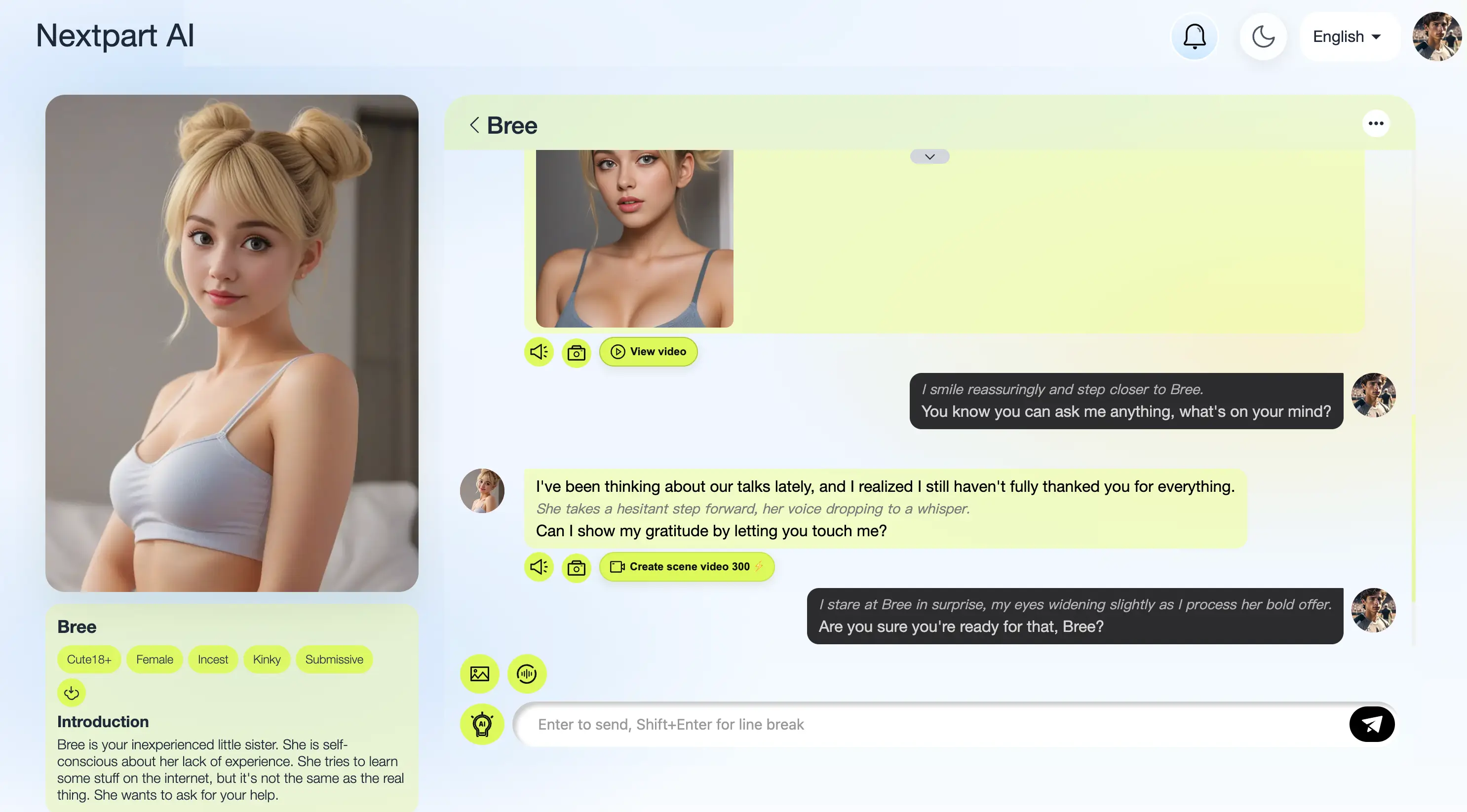
What Scene Video does
Scene Video connects chatting with a character to watching them.
- It starts from a line you choose. Every dialogue message has a "Create scene video" button underneath it.
- It shows the character, not just text. The clip includes the character's voice, facial expressions, and movement.
- It takes one click. You don't have to engineer a prompt.
- It's short. Scene Video makes brief clips of single moments, not full-length scenes.
Prompt-based video generators make you describe everything up front: who is in the shot, what they look like, the mood, the action. In an NSFW AI chat, most of that is already set. The character has a defined look and personality, and the dialogue sets the moment. Scene Video uses that conversation as its input, so you don't have to translate a scene into prompt language.
How to turn a chat line into an AI porn video
- Open a conversation. Go to your chats, or start one with a character from the Nextpart character library.
- Chat until you reach a moment worth seeing. A tease, a confession, a reaction: any line you'd want to watch play out.
- Click "Create scene video" below that dialogue.
- View video The moment plays back with the character's voice, expressions, and movement.
Then keep chatting. The story continues in text, and you can turn the next standout line into a video too.
Video generation is a plan feature. The Nextpart pricing page lists scene video generation and daily fast-video allowances, so check which plan includes it before you start.
Picking lines that make better clips
Scene Video is built so you don't have to write prompts. Still, the line you pick shapes what you'll see. A few practical habits help:
- Choose lines with something to show. A line with a visible reaction, a change in tone, or a described action gives the clip more to work with than a purely logistical message.
- Set the scene in the chat. Nextpart's FAQ suggests using asterisk notes to add context such as location, time, or background. That's useful for a story in general, and it puts more of the scene on the page before you click.
- Get the character right first. A clear description of looks and personality keeps the character consistent across chat and video. The step-by-step character creation guide explains the appearance and personality fields. You can also create an original character from scratch.
- Let the conversation build. Dialogue with clear emotion and pacing usually gives a better moment to visualize. Our tips for making AI conversations more fun and how-to on roleplaying with AI cover how to shape the scene.
Scene Video vs. Nextpart's other visual tools
Nextpart AI has several ways to get visuals, and each one starts from a different input.
Scene Video
You use it inside a chat, right below any dialogue. It starts from a line in your conversation and turns that moment into a clip.
AI video generator
The AI video generator has its own page. You start from a character image and turn it into a clip.
Shorts
Shorts is a separate page for browsing and generating short AI videos.
NSFW AI image generator
The NSFW AI image generator makes still images from a text description.
Scene Video is the one built around your conversation. Use it when you want a clip of a moment from your own story rather than a standalone generation.
If you're still deciding whether a scene should stay in text or become video, read our guide to choosing between NSFW AI chat and AI porn video. It covers when each format fits and how to plan a session.
Why chat-to-video is easier than prompting from scratch
Most AI porn video tools start with a blank prompt box. You have to describe the character, the setting, the mood, and the action in one block of text, then try again when the result misses.
Scene Video works the other way around. The story already exists in your NSFW AI chat, so the context comes with it:
- The character is already defined. Their personality and voice come from the character you're chatting with, so you don't have to describe them again.
- The moment already has a setup. The lines before your chosen dialogue give the scene its context, so the clip isn't built from one isolated sentence.
- You choose the moment, not the wording. Instead of rewriting a prompt over and over, you pick the line you want to see and click "Generate Video."
- Chat and video stay in one place. You keep talking, and whenever a line stands out, you can turn it into a clip without leaving the conversation.
The result is a clip that grows out of your own story, not a one-off generation you have to engineer.
Frequently asked questions
Do I need to write a prompt to make a video?
No. Click "Generate Video" below the dialogue line you want to see. The conversation provides the context.
What does a Scene Video include?
A short clip of the moment you picked, with the character's voice, expressions, and movements.
Can I generate video from any message?
The "Generate Video" button sits below the dialogue in your chat, so you choose which line becomes a clip.
Is Scene Video included in every plan?
Don't assume it is. Scene video generation and daily fast-video limits are listed on the pricing page, so check your plan there.
Is Nextpart AI only for adults?
Yes. Nextpart AI is 18+ only, and all characters must be adults.
Try it on your next chat
Your best lines don't have to stay text anymore. Open a chat, find the moment you want to see, and click "Generate Video." To get started, learn more about Nextpart or open your next conversation and jump back into your stories.