
NSFW AI Chat With Images: Scene Backgrounds and the New Generate Image Tool
Nextpart AI started as an NSFW AI chat platform. The story lived in text, and the pictures lived in your head. Now there are two ways to see it:
- Scene backgrounds inside the chat. Nextpart draws an image based on the current chat scene, and you can set it as the conversation's background.
- Generate Image, new as of October 23, 2026. It's a standalone page where you write any prompt, choose a style and an aspect ratio, and create an NSFW AI image that isn't tied to a character.
The first follows your story. The second starts from a blank prompt. Together they cover most reasons you'd want an image alongside an NSFW AI chat.
Scene Backgrounds: Images That Follow Your Chat
Inside a conversation, Nextpart has a real-time background generation option. According to the in-app description, it draws a real-time scene image based on the current chat scene. The image comes from what's happening in the conversation, not from a prompt you write.
How it works in a chat:
- Chat until the scene is set. The more the conversation says about the place, the time and the mood, the more the image has to work with.
- Choose real-time background generation from the chat's menu.
- Set it as the background. Use "Set Background" to put the image behind the conversation, or "Download background" to keep a copy.
You don't have to describe the scene again. The character you're chatting with and the lines you've already exchanged supply the context.
Getting better scene backgrounds
- Use asterisk notes. Nextpart's FAQ suggests adding asterisk notes to give extra context about the background, location, time lapse and so on. Those details help the story, and they also put more of the scene on the page before you generate.
- Change the scene before you regenerate. If the setting moves from a bar to a hotel room, say so in the chat, then generate a fresh background.
- Start with a clearly described character. A defined look and personality keep the visuals consistent with who you're talking to. You can create your own AI character from scratch.
Scene image generation is a plan feature. The app asks free users to upgrade to Deluxe to generate background images, and the Nextpart pricing page lists scene image generation by plan. Check it before you start.
Generate Image: Create NSFW AI Images From Any Prompt
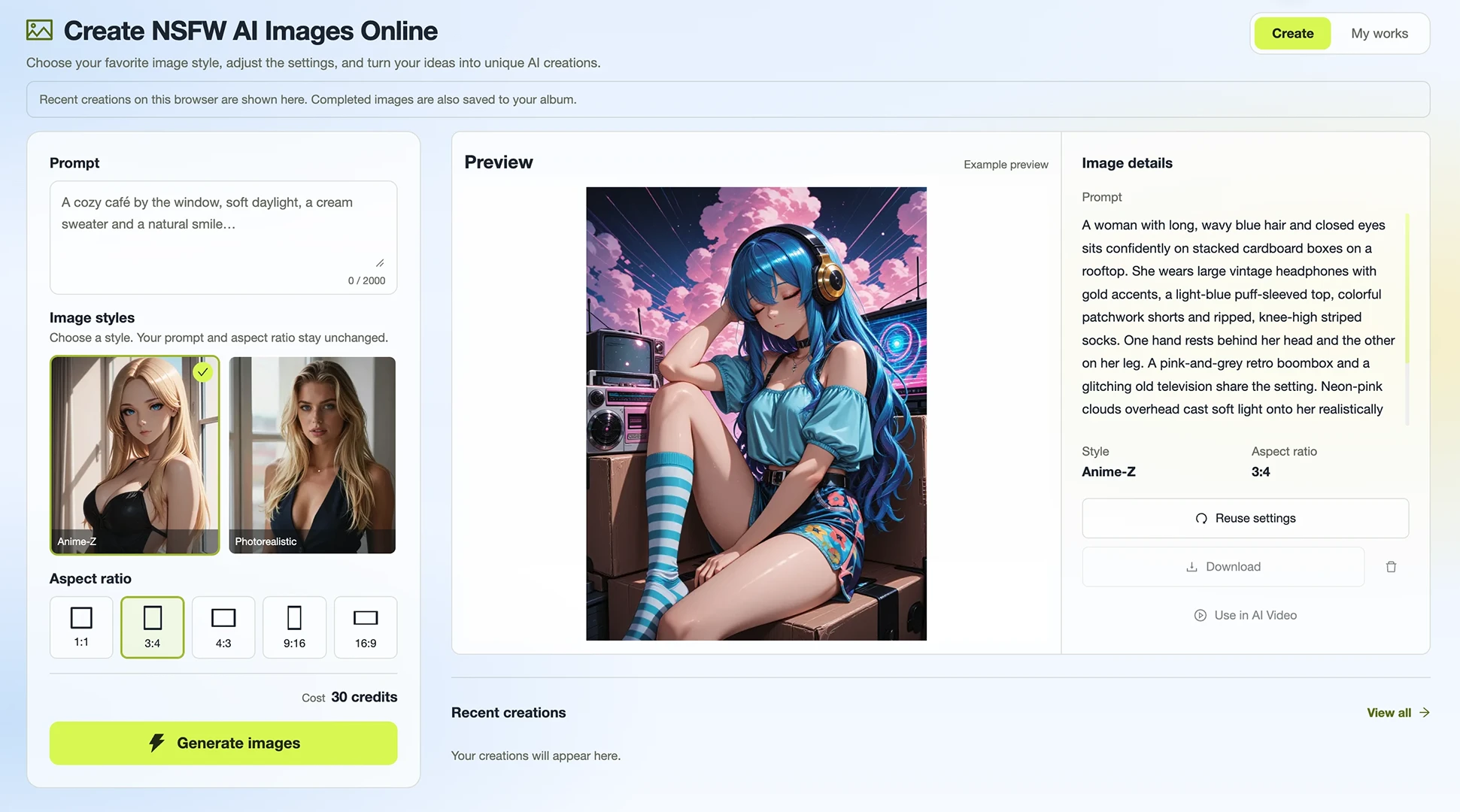
Generate Image is the other half. Its page is titled "Create NSFW AI Images Online": choose your favorite image style, adjust the settings, and turn your ideas into unique AI creations. It isn't tied to a character or a chat, so you can create any image you can describe.
Open Generate Image and you'll see four parts:
- Prompt. A text box for your description, up to 2,000 characters.
- Image styles. Two styles: Anime-Z and Photorealistic. Switching style doesn't change your prompt or aspect ratio.
- Aspect ratio. Five options: 1:1, 3:4, 4:3, 9:16 and 16:9.
- Preview. Your result appears here. Recent creations on that browser are shown below it, and completed images are also saved to your album.
How to create an NSFW AI image
- Write your prompt. Describe the subject, the setting and the mood.
- Pick a style. Anime-Z for an anime look, Photorealistic for a photo-style result.
- Choose an aspect ratio. Square, portrait, landscape, or tall and wide formats.
- Generate and check the Preview.
- Adjust and try again. Change the prompt, or switch the style while keeping the prompt and ratio as they are.
Writing prompts that work
The 2,000-character limit gives you room to be specific. That matters, because vague prompts give vague images. A useful prompt usually covers:
- Face and features: apparent adult age, face shape, eyes, expression.
- Hair and body: color, length, build.
- Outfit or lack of one: fabric, color, fit.
- Setting and light: a hotel room at night, a sunlit studio, warm lamp light.
- Pose and framing: seated, close-up, full body.
Keep each prompt about one subject and one moment. If you want two different ideas, make two images.
Choosing a style and aspect ratio
Since switching style keeps your prompt and aspect ratio, comparing the two is easy. Generate once in Photorealistic, switch to Anime-Z, and generate again. For the frame, 3:4 and 9:16 suit portraits and phone screens, 16:9 and 4:3 suit wider scenes, and 1:1 works for avatars and square posts.
Scene Backgrounds, Generate Image and Scene Video: Which to Use
Each visual tool on Nextpart AI starts from a different input:
- Scene background starts from your conversation. Use it when you want the chat itself to look like the scene you're in.
- Generate Image starts from your prompt. Use it for one-off images, specific poses or styles, or anything outside a chat.
- Scene Video starts from a single line of dialogue and turns that moment into a short clip with the character's voice, expressions and movement. Our Scene Video walkthrough explains how it works.
They also work in sequence. A chat sets the scene, a background shows it, and a standout line becomes a clip. Generate Image covers whatever falls outside the story. It's the hands-on, prompt-first side of Nextpart's NSFW AI image generator tools.
Using NSFW AI Chat and Images Together
A simple session that uses both:
- Define a character with a clear look and personality.
- Chat for a while and let the scene build, using asterisk notes for the setting.
- Generate a background once the scene is worth seeing.
- Open Generate Image when you want a specific shot the chat doesn't give you, and reuse the character's description in your prompt to keep the look close.
- Turn a key line into a Scene Video if the moment deserves motion.
If you're still comparing platforms, our roundup of the best NSFW AI chatbots of 2026 covers how Nextpart stacks up on chat, memory and media.
Frequently Asked Questions
Do I need to write a prompt for scene backgrounds?
No. The background is drawn from the current chat scene. You can steer it by adding detail to the conversation, for example with asterisk notes.
Is Generate Image linked to my characters?
No. Generate Image works on its own. You write the prompt, so it can be any adult subject or scene you describe.
What image styles are available?
Two: Anime-Z and Photorealistic. Switching between them keeps your prompt and aspect ratio unchanged.
Where do my generated images go?
Recent creations made on that browser appear on the Generate Image page, and completed images are also saved to your album.
Is Nextpart AI only for adults?
Yes. Nextpart AI is 18+ only, and all characters and image subjects must be adults.
See Your Story, Not Just Read It
Open a chat, let the scene build, and generate a background when it's worth seeing. Then try Generate Image for the shots you've only described so far. To get started, jump into an uncensored NSFW AI chat and pick up where your story left off.